IPTVs.us editorial guide · Updated
When a stream stalls on the television, write down what happened before you touch the router. Did the app fail to open, did the channel list appear but stay empty, or did a picture play for a while before it froze? Each symptom points toward a different first check. Start with one screen and an account you have permission to use. Pick a feed and part of the day when you can repeat the test. If a second person is watching in another room, ask them what they are doing before you change the internet connection or account settings. You are trying to find one change that accounts for the original problem. Five changes at once usually buy you an evening of guessing next time.
Identify the exact device
Look in the system information page for the model, operating system and software version. “Samsung,” “Android,” and “Fire TV” are product families. Two televisions sold under the same family may have different system software, app availability or storage. Write the information from the on-device settings in a private note before searching for an app. If an external box is plugged into the TV, the box usually runs the player while the TV controls the display and audio. Record both models if sound, remote input or picture format is part of the problem. Keep serial numbers, network addresses and signup information out of a forum screenshot. The model and basic error text are usually more useful to other viewers.
If somebody else set up the TV, trace the input and which remote operates which menu. A TV that says “No signal” may simply be on the wrong HDMI input. An app on the box cannot produce a picture until the box is awake and the television is looking at that input. Try to reach the box home screen. If it appears normally, check the app next. If you also have a smart-TV version of the app, ask which one the household was using before troubleshooting. It is easy to fix the installation on one device while a viewer is sitting in front of the other, watching a different screen with a familiar background.
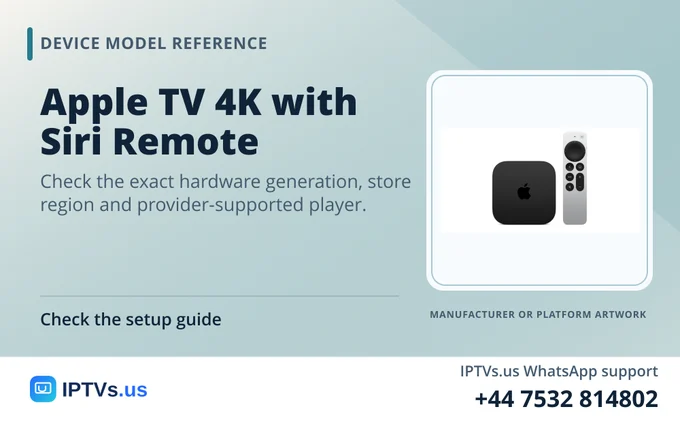
If you are choosing a new player, check the manufacturer’s exact device documentation. Apple publishes the App Store instructions for Apple TV 4K and Apple TV HD. Roku documents how its Streaming Store works, and Amazon maintains a table of Fire TV device specifications. Samsung has TV app instructions that show examples of the menu. Read the page that applies to the box or TV you own. Ask the provider for the exact app publisher and version or store listing they support. The fact that a relative has an app on a different device doesn’t establish availability in your own store region.
Start with a verified player and account
Read the publisher name and install route before entering anything. If your provider publishes an app name and a link, compare those with the device’s store and check which versions match. A name can be shared by an unrelated app. Some devices require a separate app license and some use a one-time player purchase. Confirm what is included and who charges for each part. A compatible player may support a type of playlist or account without having rights to supply any contents itself. Ask the source that issued you the service which sign-in method applies. Keep the account registration and the app purchase in separate records so you can contact the right seller if activation is delayed.
If your provider sends a playlist address, treat the full address as a credential even when it looks like an ordinary web link. It may include a username, password or token in the path or query. Enter it in the trusted client field as instructed by the provider. Avoid pasting it into public browser checkers, volunteer support threads or screenshots. If the player prompts for a device key or activation code, find out what the player sends and which provider page actually needs it. A screenshot shared to prove that a login worked can reveal enough to let another person use an account. Cover every private field and any QR code before sharing a picture. Use the authorized reset route if you accidentally disclose something.
On a new device, enter the fields carefully and note the first response. Verify the scheme and host against the account message and watch for spaces added by copy and paste. If typing on a remote is awkward, use the device manufacturer’s input feature where appropriate. Ask the provider to confirm the login type if the names of fields differ. Some apps call the first field a list name or display name. A harmless label is different from an actual account username. Make a note of the exact warning if the request fails. “Host unavailable” and “bad credentials” may lead to different support checks, even when both show in the same color.
Prove which stage is broken
Try the smallest test that matches the symptom. If the device fails to load its home screen, the network or appliance may be involved before the IPTV player. If the app launches but does not list categories, confirm the account route and whether the provider can see activation. If the list populates and only one feed fails, take the exact feed name, date and time to support and try another feed from the same service. If the same app quits across all channels after a recent update, record the app version and check the developer’s notes. If the problem appears only when something else is playing, check the provider-defined connection allowance. Keep these stages on paper. The order helps you ask a narrow question.
A practical example starts with a black screen on a local news feed. Ask whether another program on the same service opens. If it does, go to the local feed again and see if audio, captions or the guide still respond. Ask another authorized device on your own account to try the same feed only if the plan allows the change. Stop the first playback if the allowance is one. If that feed is missing on both devices while another feed plays, the provider has a narrower source problem to inspect. If the local feed works on the phone but fails consistently on a particular TV, record the exact two devices and their networks. The app, decoding or output settings may be the useful next area to investigate.
Another example is a player that never opens after installation. Get back to the device home screen. See what happens when you open an app installed through the same manufacturer store. Check free storage and whether the device is applying an update. Save any settings you need before removing or clearing the player. Find out how activation can be restored and which credentials you already have. If the new install behaves the same way, changing which account you buy rarely helps at this stage. Contact the app publisher with the model, current software and exact behavior. If you have an earlier version that worked, note its number and when your device received the new one.
Test the network with one change at a time
You can learn a lot about playback by keeping the stream and time fixed while changing one part of the network. A wired comparison is useful if the device supports it. Put the device on Ethernet, confirm it actually uses that route, then repeat the same feed around the same time. Record whether start-up and interruptions behave differently. Some model variations need a compatible adapter, and an unreliable adapter can create its own problem. Use the Fire TV specifications or manufacturer documentation to confirm your model. If you use Wi-Fi for both tests, try the device in a location where the signal is better and repeat the same program. You are comparing enough of the same setup to isolate a plausible cause.
A speed test can help establish whether the local connection is unusually slow at a given moment. Try to run it on the device or an equivalent network path. A phone next to the router can give a much better result than a TV across two walls. A single high reading does not tell you whether the stream’s connection had packet loss or a prolonged dip during a live event. Note how playback behaves over twenty to thirty minutes during a relevant hour. If a download or backup coincides with the test, repeat after it finishes. In a busy home, ask before interrupting any device. If the independent internet connection repeatedly fails for unrelated activities, bring dates and times to the internet provider.
If you change Wi-Fi settings, save the old values and the result of the trial. A device that works near the router may have been placed behind a TV inside a cabinet. Cables, TV ports and placement might make reaching the same network harder than expected. A recent mesh setup can also carry an assumed proximity that doesn’t match the path used by a particular device. Where possible, check the access point the device reports and compare with the other test result. If changing the path fixes playback, repeat your normal viewing test once more before changing the provider account. If playback still fails on only one provider’s feed, go back to the service-side facts you already recorded.
Keep account limits in the test
Many accounts distinguish authorized installations from simultaneous streams. A screen might keep a feed open while its picture is minimized or the input is changed. Some players stop immediately. Others may take time for the session to clear. Read the provider’s connection rule and learn the normal way to stop playback on your devices. Test your usual switch between rooms with the actual app behavior, rather than by signing out everywhere. If the plan allows two active streams, try a separate feed on each screen and note when the warning occurs. Different devices using the same login can make a playback issue seem random if you never see where the other stream is running.
For example, suppose the main TV works while everybody else is out, but it drops the picture once a tablet starts. Stop the tablet stream and try the main TV again. If it works, write down the plan’s allowed connections, both device names and which one started first. See whether the provider can confirm the account rule or any active sessions. If two streams are included, the result can still depend on the household network or account setup. Repeat carefully after pausing any large traffic. If the plan supports only one, do your single-device test with the other app fully stopped. Avoid opening multiple installations against the same account while trying to confirm a login problem.
When replacing a box, ask the provider whether you need to deactivate the previous device or merely stop its playback. A device slot, app license and active stream can have different lifetimes. Write down which seller handled the previous activation. Some players use the local store to confirm a purchase. Others ask the account holder to reuse an app license. Before wiping the first device, confirm what information is needed to move its existing settings securely. If you know an account was previously shared beyond the expected users, change credentials through its approved route and confirm who should still have access. A household owner should be able to identify which login is safe to share with the approved provider.
Tell a bad guide from a bad stream
An electronic program guide is the schedule the player shows. It can be out of date while playback still works. If the feed plays the intended program at the correct local time but the guide is offset, record the device timezone, location setting and a sample program date before changing anything. A guide that is consistently shifted by an hour, a listing in another time zone, and one station with the wrong programme may require different fixes. Check whether the player has a separate guide-source or timeshift setting and ask the provider what is expected. Use a known broadcaster’s schedule as a reference when you can. Avoid guessing time offsets from a single listing near a daylight-saving change.
A mislabeled station can look exactly like a wrong guide at first. Suppose you expect the evening news on one affiliate but the stream shows another market. Compare the call sign or city shown onscreen with the provider’s label and the station’s own schedule. Two different affiliates can share a network logo while giving you a different local program. A different market may also carry different rights for an event. Confirm with the actual provider or rights holder. The corrections you would ask a guide vendor and a feed provider to make are different. Tell support whether you saw the expected picture at the expected time, so it can work out if it should inspect the feed mapping, guide data or timezone.
If the guide is missing after a fresh install, test playback first and check the current provider instructions. Some setups have one approved place to refresh the schedule. Others load the app guide automatically. Find out whether the account is expected to have guide data and how long it takes to fill. If support requests the configuration, hand over only the non-secret parts through a private route. In a forum post, mention the app version, symptom, device time and exact steps with account details removed. Update the thread with the change that resolved it, such as a corrected automatic timezone or provider feed mapping. People with a similar problem can then see what was confirmed.
Check picture, audio and captions in context
If black video appears with sound, keep the test to the same feed and hardware path. Ask whether other videos produce a picture. Check any message on the TV or player and record the actual displayed warning. Your display, cable, external receiver, codec support and application each play a part. If the service offers an officially supported alternate quality, try that within the app and record whether it changes the symptom. Check the manufacturer documentation before adjusting what the display expects. A change to one box setting can affect other devices if you route everything through the same receiver or television input. Return to the previous value if the test does not help.
For audio, establish whether the problem is silence, an unwanted language, delayed sound or a specific channel. Try a known source with sound and use the on-device volume and output controls. If there is a separate receiver, note whether its other sources play correctly. If only one programme is affected, inspect named audio tracks available in the player and ask the provider which live track should be present. If the screen is set to Spanish but the stream remains in English, distinguish menu language from stream audio. For captions, ask the viewer who uses them to check a live source and a different programme when possible. Note whether the subtitle is legible and whether the toggle survives a channel change.
Take a setup with an older TV and an external audio bar. A tablet plays the same feed with audio but the TV is silent. Try an authorized known video in the box to establish whether its usual output works. If it does, use the app’s documented audio selection or the provider’s alternate track before changing system-wide settings. If all audio in the box stops after a TV replacement, check the actual output and input path in the manufacturer’s manuals. Make one change, record the state, and check again. A provider can look at the feed if you show that the issue follows it. A technician can focus on the equipment if the issue follows the output path across other sources.
Test the people and the remote
Getting the first picture is only one milestone. Ask the regular viewer to start the television from a cold screen, open the app, find a station and get back home. A first screen may use a long menu with closely named feeds. Your preferred layout is irrelevant if the person doing the trial can’t reach the place where their programme usually starts. If they need captions, larger display text or a simpler remote flow, test with those conditions from the first day. Write a little note using the actual names printed on the remote and in the app, rather than the app vendor’s generic names. Place the note somewhere you can reach without opening an account page.
Some viewers switch between a game, local news and a subscription platform in the same evening. Ask them which should be a TV input and which should be a separate app. Test the actual button path. If the player starts directly on the last channel, check how easy it is to back out. If a remote replacement has different controls, circle the new names on the printed setup note or use a source image that clearly labels the layout. A recording of the whole login sequence is usually unnecessary for the handoff. The setup note can say what to do and what screen to expect while the account owner keeps credentials private. A useful test is to let the next person do it again the next day.
For a living-room setup managed by somebody else, assign one person to updates and account renewals. The viewer should know what to check when the picture fails and how to reach that person. Make the first check something harmless, such as verifying whether the TV is on its correct input, whether another authorized feed works, or whether the support screen shows an expected status. A general reset will remove the very setup information support might need. Keep an envelope or private file for the official account details and policy. Leave public contact information accessible separately. When the hardware or player changes, update the note using what actually appears on the screen.
Make an evening test that you can repeat
Choose one programme, one room and one normal viewing period. Observe whether startup feels consistent, which step shows a warning and how often a stall occurs. Repeat once without any new equipment. If the problem recurs, change one variable. Start with what you can switch back, such as the device or network connection, provided the account allows it. Use the same start time where useful. Compare at least one other authorized feed and record whether the problem follows that feed, device, account or time of day. If the streaming service has its own health notice, take a look at it and note what it actually covers. A status update for a broad service might say little about the one local station you were trying to view.
Use a short diary. An entry can say “Saturday 7:40 p.m. local, the app opened on the living-room box, local feed stalled twice in 20 minutes, another feed played normally, same issue repeated after going back.” Add whether the network was wired or Wi-Fi and who was using another screen. Leave out private identifiers. If your tests need timestamps for support, note the time zone. Save changes as separate entries. If picture improves after replacing a cable and you also saw a provider outage earlier, run a second test the next day before calling the cable the only cause. Each quiet test improves the notes you can take to the people who can inspect the app or service.
If a weekend test is the whole reason you want a trial, ask the seller to confirm when it starts. A short trial activated the morning you receive the message might expire before the programme you hoped to test. In a permitted trial, use the same hardware and an event or substitute at a comparable busy time. If a live event is missing and other feeds work, check whether the provider or broadcaster actually carries it in your ZIP code. Account support can sometimes explain a feed selection or eligibility issue in writing. A network tweak cannot add viewing rights. Check the provider’s actual renewal cutoff and save any trial cancellation confirmation you need.
Send support a report they can act on
Start with a one-line symptom and the exact device model. Add the app version, time and whether any other channel or device did work. Give your prior working baseline if you have one. A concise support ticket can read “The local-news feed loses picture but keeps sound after the last app update on this model. A sports replay and the TV menu work, and another authorized device shows the same channel normally.” Then give the date of the last good test if known. The app team can check its known update issues. The provider can check the feed before guessing you used the wrong account. An app publisher may ask for a redacted log. Inspect it and use the publisher’s approved support channel.
If the display reveals account information when an error appears, reproduce it without sharing a full photo. Type the actual warning with secret fields removed. If a form needs a provider account ID, submit it privately and keep the public version short. Save when you last tried and the smallest steps needed to repeat the problem. Support might ask you to try a software restart. Before doing anything that clears the app or account, check how to restore your legal access. If you are seeking help in the viewer setup forum, include enough information that another viewer can tell which part of the setup to look at. Provider staff should check order, rights and account matters directly.
If you solve the issue, write down the old condition and what you changed. For example, “The guide was one hour ahead because the old box had a manual timezone. Setting automatic timezone corrected the next two listings on the same feed.” That is more useful than “fixed it.” If someone suggests a setting that does nothing for this model, say which version you tried. Keep the solution in the household’s notes. If the symptoms return, compare them with the first failure before starting over. You may find it’s a different part of the workflow, and now you have a tested known baseline.
Keep a first-week log after the fix
Keep a first-week record small enough to update. Mark the date, device and main app version. Keep one line for the real busy-hour test, one for any connection limit you exercised, and one for captions or guide timing if you rely on them. You will know if an update reaches the TV next month and changes the result. If you bought a different unit after the trial, record the receipt and which setup you returned. Put installation information next to the app license record. If the new hardware still needs the same account or seller, ask whether a device transfer or old app recovery needs to happen before you give the old box away.
Some households have a main setup and a guest setup. Write down the different conditions as independently as you can. The guest TV might be on distant Wi-Fi. It may have a different app or only get used during weekends. Test the main screen before approving a bigger subscription because a guest reported an isolated problem. If another authorized screen is on the same plan and consistently behaves differently, compare store versions or settings and make the smaller fix. A real context can be a list of the two boxes and which room and remote they use. The most useful troubleshooting log gives the next person a check they can perform safely.
If you want a step-by-step guide for a model family, go to the devices directory. To ask a feed question or decide whether the app fee makes a term worth keeping, use the U.S. buyer’s guide and bill comparison guide. If a company operates its own authorized live feed, share timestamps and the precise playback issue with the team that runs that feed. It will need to know if your problem starts before or after its service hands off video. Keep your test small enough to repeat before changing another part of the setup.
Work through a small apartment with a weak signal
Take a household with a router by the doorway, a wall between the router and the TV, and a tablet that seems to play normally. The signal reported at the TV is weaker than the tablet sees at the kitchen table. Testing on the tablet in the kitchen only proves the feed and account could play in that room. Move the tablet to a position near the TV and run the same authorized feed there. Make sure the television is no longer using the account if you have one connection. Then repeat on the television in the original position. A difference between the tablet in two rooms makes placement worth investigating. A difference between device types in the same room leaves app or device behavior in the picture.
If the television or box supports wired networking and a temporary cable can safely reach, try it for one evening. Run the cable without creating a trip hazard. Verify the device’s connection type in its settings, then play the same content at a similar time. If the trouble stops, repeat on Wi-Fi once more to see whether the change follows the network path. A wired test can be worthwhile even when wiring the room permanently is impractical. It helps determine whether better device placement or access-point coverage would address the problem. If the same isolated feed fails through both connections, ask the service to check the feed with the date and time you recorded.
If you buy a new device to improve reception, confirm you can return it if the real setup does not work. Give the household one repeatable test instead of changing the router, location and player at the same time. Choose a location where the power and HDMI cables reach safely and where you can use the normal remote. Leave the old device available until the new one shows the entitlement and plays the expected programme. Some failures are caused by a previous device still consuming the open stream. Ask how to end its session before declaring the new device incompatible. Once the viewing test is complete, check your notes and decide which change accounted for the improvement.
Handle an update without losing the working setup
Sometimes the only change anybody remembers is a device update. Write down the last date of normal playback, the date the failure was noticed and the version from the settings menu. Then check the developer’s current release or support notes if they have a page for that model. Updates can change menu locations as well as playback behavior. Confirm whether the app launches properly, which screens fail and whether the TV remote still sends the same inputs. A compatibility issue will be easier to explain if you can send a clean reproduction with the platform and version. Use the software routes the device manufacturer or publisher actually supports.
If prompted to reset the app, learn which changes that action will erase. An app might store many favorites locally while account expiration remains with the provider. If a setting can be restored without retyping credentials, do the smaller reset first. If removal requires you to activate a player purchase again, check the store’s ordinary restore process. Photograph a harmless layout or write down your favorite channels privately if doing so is useful. Keep passwords and original authorization links out of that picture. Once you have tested after the reset, record whether the symptoms changed and whether the app kept the settings you expected.
Build a two-line known-good setup note. One line can be “Family-room source HDMI 2, provider-approved app through this box’s verified store, usual Wi-Fi.” Another can say “Confirmed local news and captions on this date, account one active stream, playback stopped on tablet during test.” At the next support incident, compare these entries against what people are actually using. They may remember yesterday’s failure but miss the fact that they launched the other TV interface for a week. The goal is to get one household owner to the same working state the other owner saw, without a developer’s help every time.
Find out whether the feed or the event was unavailable
Choose a reproducible question. If an event is missing, know its date and time, organizer, market and authorized seller first. Check the broadcaster’s or rights holder’s own information for the market and record its named authorized distributor. If the provider says it carries the source for your ZIP code, ask for the precise station or package inside the account. An event may have a separate feed, while a channel with the same network branding may carry normal programming. Check whether adjacent programmes on the same authorized source opened during the same window. If the player works for other programs, a support ticket about a particular listing can be much more useful than requesting a new network configuration.
When watching on a traveler’s device, store region and service eligibility may also differ. Ask the authorized service what happens in the place you plan to use it, before assuming that a home device’s working picture tells you the answer. If the service will only work at home under its terms, use a permitted viewing route for that location. Note the specific location constraint and buy only after the provider answers. If you are helping somebody move to a new home, check the expected market and feeds before ordering another month. In a forum discussion, use a general city or region if it helps explain a feed and keep the full address private.
Use a checklist when collecting a second observation
Ask a second person to repeat the test during their normal routine. Give them the same starting screen and feed, and ask them to record whether the problem happened, when and which warning appeared. One person may pause the stream while a second keeps it active, or open the guide instead of using search. The difference can help you isolate a repeatable step. If the report changes only when one user opens a separate device, compare connection behavior first. If it changes with a satellite TV input, agree which app and source the IPTV account uses. Save a clear example before asking someone else to diagnose it from memory.