

Start with the last thing that looked normal
Before reaching for a reset button, ask the person holding the remote one question. What was the last thing on the screen that looked right? “The television said no signal” and “the programme guide appeared but a film stayed black” describe faults several steps apart. A remote control, a television input, a streaming box, an application, a network connection, a viewing account and an individual programme can all be involved in putting one picture on the screen. The last working step tells you which part deserves attention first.
A useful first minute requires very little equipment. Have the television remote, the external player’s remote if there is one, the name of the app, and a place to write down what you see. Look at the screen in front of you before changing anything. Is there a television message, a device launcher, a player logo, a sign-in screen, a list of programmes or a frozen frame from something that was already playing? Write down the exact stage. If the message includes an account identifier, leave that part out of public notes.
Give the fault a time boundary. Did it begin with first installation, after changing the HDMI input, after a new app version, when starting one particular programme or after half an hour of ordinary viewing? A fault that occurs only when starting HDR material points towards different tests from a box that never shows its home screen. A guide displaying the previous hour while the correct live programme plays points somewhere else again. The provider’s brand name does little to distinguish those cases.
Work with one reversible change at a time and retain the last known good arrangement. If a test makes no difference, restore the earlier setting before proceeding. If a test fixes the problem, repeat the original action to see whether normal use works. The goal of a forum discussion is to leave the household with both a usable screen and an explanation another person can follow. Reinstalling everything at once can restore the picture while destroying every clue about the part that needed attention.
Choose a branch before testing
| What you see or hear | First observation | Where to go next |
|---|---|---|
| The screen is dark and even the television menu does not appear | Use the television’s own menu control on the correct remote | Check the display and its built-in test before the streaming app |
| The television shows a menu or “no signal,” but the external player never appears | Match the selected input with the physical connection | Follow the HDMI and player-startup checks |
| The external device home screen works, but the app is missing or cannot open | Identify the device model, operating system and actual app listing | Follow the platform and installation checks |
| The app opens to an account or activation screen | Identify the heading and which supplier owns it | Check software licensing and viewing-account status |
| The guide appears and video plays, but titles or times are wrong | Compare one known station with its own schedule | Check the guide clock and station mapping |
| Several unrelated apps struggle on the same device | Run the device’s own connection check where available | Compare network, room and source results |
| Programmes play but one room has no sound or captions | Identify the selected audio output, track and caption setting | Follow the audio and accessibility checks |
| One named station or item fails while other material works | Record the station, time and exact behaviour | Prepare a source-specific support report |
These are entrances to a diagnosis. More than one row can apply during a complicated evening. Start with the earliest observable failure. If the television says “no signal” whenever the external box is selected, a password reset is premature. If the player menus and several other programmes work, the same HDMI connection has already carried useful pictures. Keep that working evidence rather than starting every support conversation from scratch.
A genuine decision point has two possible outcomes and different next actions. For example, run the television’s own picture test. If the defect appears there, record it for the display manufacturer. If the test picture is clean, investigate the attached input or app that shows the defect. Compare that with repeatedly asking whether the screen looks any better after random changes. A branch lets every result, including a failed test, narrow the problem.
Know when you have reached the right specialist. An app publisher can explain its licence or supported version. The named viewing seller can look up a private account or investigate a specific feed. The television or receiver manufacturer can explain its own settings and hardware diagnostics. A person on a forum can help interpret symptoms, compare models and check the logic of a test. They need a clear description, not access to your paid account.
Use the television itself as a known source
Bring up a menu generated by the television using its own remote. A clear, correctly coloured menu establishes that the set can draw that interface. It says little about the source plugged into HDMI or the later behaviour of the streaming app. On the other hand, lines, tint or a repeated defect in the television’s own menus give you a reason to examine the display before contacting a programme supplier.
Many televisions include a picture or screen test. Samsung’s U.S. guidance for 2022 and later models directs owners through All Settings, Support, Device Care and Self Diagnosis to the picture test. Older models can use a different menu. LG documents its own Screen Self-Diagnosis or Picture Test routes, with the location depending on the model and software year. Consult the support article for the exact set if your menu differs. A menu missing from one model is not evidence that the set lacks the function entirely.
Look for the same defect on the built-in test picture and on the programme that first drew attention to it. A stationary vertical line that crosses the test image deserves a different report from blocks that appear only during fast motion on one feed. A normal test image gives a useful display-side reference. It cannot guarantee the health of every input, cable or source, and an unusual colour preset on a single HDMI input may still need attention later.
Take a photograph of the built-in result only if it helps capture a consistent visual defect. Keep the entire picture edge in view when describing cropping and note whether the TV menu itself fits. A photograph of a picture that flickers for less than a second may be much less helpful than a written note describing exactly when it happens. Device serial numbers and private network details have no role in a public photo.
If there is no normal picture or menu on any input and the manufacturer’s own test cannot be accessed, stop changing streaming-account settings. Follow the manufacturer’s support route for the television, with the model and observable behaviour ready. A service seller cannot use a new login to repair a display that cannot show its own home menu. The value of this first branch is the work it saves everyone further down the chain.
Trace an HDMI picture one device at a time
Find the HDMI port physically connected to the player. A cable plugged into HDMI 2 and a television set to HDMI 1 can produce a convincing “no signal” message with an otherwise healthy player and account. Check the label on the television, then use the television remote to select that input. If an audio receiver or soundbar sits between the player and television, it may have its own input selection. Record the route from player to receiver to display.
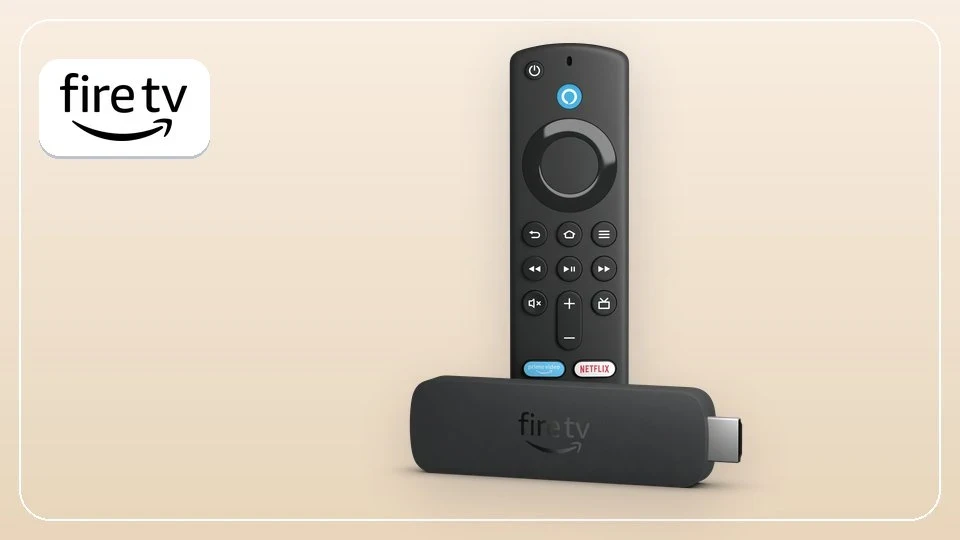
Amazon’s Fire TV support guidance includes checking the TV’s selected input, restarting the Fire TV device and, where relevant, comparing a direct connection to the television with a route through a receiver. On a household system, keep track of the original wiring and input names before moving anything. A direct connection that restores the external player’s home screen narrows the difference to the intermediate equipment or its configuration. It does not by itself prove that the receiver is defective.
Use a known working HDMI source or spare compatible cable already in the home when one is readily available. Keep the port and current settings fixed for the first comparison. If a known device works on that route and the original device does not, record the difference. Next test the original player on a known working route if that is practical. A single changed variable is what makes the information worth collecting. Replacing the cable, moving the box and changing the display mode together makes the test difficult to interpret.
A short black interval when playback starts is a special case. Equipment may change video format between the home screen and a programme. Note whether the picture returns by itself, whether sound continues and whether the black interval recurs after playback is underway. A brief transition on starting a programme is different from persistent loss of signal or repeated flashes during a programme. Identify which one happens before buying another cable.
Apple’s Apple TV 4K guidance documents that some televisions support particular high-quality formats only on specific HDMI inputs or with appropriate settings. It also describes the built-in HDMI connection check on compatible setups. If the home screen is stable in a known supported mode but the picture drops when a demanding format begins, check the model’s actual port capabilities, the receiver if present and the cable path. Use a supported working format while investigating. A television’s ability to accept a 4K input cannot establish the resolution originally used to produce an IPTV feed.
Distinguish a native TV app from a box or stick
A family can own one Samsung television and run three completely different app environments on it. The native TV software may provide a Samsung app store. A stick connected to HDMI may run its own system and storefront. A Windows laptop connected to another port uses a desktop player. All three produce images on the same physical panel. Ask “On which device do you select the app?” before searching for a download or telling a viewer what to press.
Write down the exact name from the device information screen. Add a model identifier or software version sufficient to distinguish the platform, while keeping serial numbers private. Amazon’s technical device table documents Fire TV models using Fire OS and models using Vega OS. A supported Android application for a compatible Fire OS device is not automatically a suitable installation route for a different operating system. The box’s retail brand and the year someone thinks it was bought are weaker evidence than the actual model.
Native Samsung Tizen, LG webOS, Apple tvOS and Roku devices have their own application availability. A desktop Windows installer is designed for Windows. An Android APK applies only to compatible Android-based environments where the publisher supports it. When a seller recommends an app, ask for the exact product name, publisher and current device-specific source. A similar icon from a different developer does not guarantee the same account formats, licence conditions or features.
Sometimes the app never appears in the television’s store. Record the model, software version and store region and check the publisher’s supported-device information. A viewer can ask the seller whether another approved player on that platform works with the paid account. If an external player is proposed, ask what hardware, remote, app and charges the arrangement adds. Buying a new box is a different decision from configuring an app the household already owns.
Once the right app opens, make sure the viewer can navigate it using the intended controls. A phone interface displayed on a TV can contain buttons unreachable with a directional remote. A desktop app operated through HDMI may be perfectly usable at a desk but inconvenient from a sofa. Reach the guide, return to the home screen and exit normally using the household’s actual controller. Passing that small test gives the next person a platform they can operate before money or account troubleshooting enters the picture.
Recognize three different sign-in screens
The device account can control the app store and purchases. The app publisher can control a player licence, registration or device activation. The viewing provider supplies account access for the agreed term. Any of the three may use the word “account” or show an activation prompt. Read the heading, app name and expected purpose before entering information. A password issued for a viewing subscription has no useful place in a television manufacturer’s account screen.
If the app asks you to activate software, check the publisher’s current licence terms, cost, duration and device transfer rules. A household can have a fully paid viewing account and an unlicensed third-party player. It can also have a paid player that opens normally while its service term has expired. Keep the relevant receipts classified by what they purchased. A note saying only “TV renewed” makes a second payment look plausible when the household may simply be looking at the wrong supplier.
If the player reaches an account form, identify the format requested. A named private server and user credential, a playlist reference and a portal setup are different arrangements. Ask the authorized seller which format matches the particular account and supported player. Use private details only in their intended application and protected support route. Do not publish a complete URL, password, QR activation image or device pairing number in a forum post.
A good diagnostic question asks whether the player opens before the error appears, whether the account was ever active on this device, and whether the seller’s private account record shows the expected current expiry. Someone who changed TVs but still has an active subscription might face a player-licence transfer. Someone who can sign in and browse current categories but cannot play one station is already beyond basic authentication. Identifying the stage prevents a routine login enquiry becoming a request for an unnecessary replacement account.
When a trial converts to paid use, confirm which account was converted and the effective date. A device may still hold an expired trial while the seller has provisioned separate paid details. Check the seller’s confirmation privately rather than creating several additional trials or sharing credentials between households. Record the actual expiry seen after the change. The solved forum answer can say the player was still using an old trial; it has no reason to identify the customer or expose either set of credentials.
Compare a network problem in the room where it happens
Start with the affected device and the room where the viewer normally sits. A fast test on a phone beside the router tells you something about the phone’s path at that location. It leaves the bedroom television’s Wi-Fi reception, device software and player untouched. Choose a known working, authorized application on the same device and try a representative item. Note whether the problem affects that app too and whether it happens at a similar time.
Roku provides a connection check from Settings, Network and Check connection on supported devices. The device can report whether it reaches its local network and the internet. Use that result as one piece of information. A successful internet check does not establish that every source is reachable, that the viewing account is current or that one particular station is healthy. A failed local network check is a good reason to fix that earlier dependency before asking the subscription provider to replace an account.
Construct a small comparison grid. Put the affected player and a second known app across the top. Put the usual room and, if practical, a location with a known better connection down the side. Change one factor at a time. A device that works in the other room but fails repeatedly in the original room suggests a location-related issue worth investigating. A particular station that fails on the authorized account in both places while other material works points to a different branch.
Where the device and household already support wired Ethernet, a permitted temporary cable can provide a comparison with Wi-Fi. Keep the same player, programme and device for that test. If wired playback improves, several possible differences remain, including local wireless coverage or interference. That result does not prove the internet package is too slow. If both routes show exactly the same fault on one feed, a Wi-Fi upgrade is a poor first purchase.
Record timing and duration in everyday terms. A pause after every channel change, repeated freezes every minute, occasional evening stalls and a stream that never starts are different symptoms. Note what else the household was doing and whether unrelated apps showed similar trouble. You need no made-up minimum speed or guaranteed server performance to write a useful report. The person receiving “the same item stopped twice at 8:14 and 8:17; another item on this device continued playing” can begin with a test more relevant than asking for a generic speed score.
Treat guide data and live video as different checks
A programme guide is a schedule associated with channel entries. A television can display perfectly good live video beside the wrong title, and an accurate-looking guide entry can lead to an unavailable feed. Start with a single station whose identity you can verify. Write down the call sign or broadcaster, selected feed, actual programme shown, guide title, day and local time. Compare the result with that broadcaster’s own schedule for the same location and date.
Next try one unrelated station in the same area. If every station appears exactly one hour early or late, inspect the device’s actual time zone and any manual guide offset. A single station carrying the wrong listing while the rest agree with the clock is a stronger reason to ask the operator about channel mapping. If only the “next” programme is wrong, the broadcaster’s schedule may have changed after the guide data was last refreshed. Give the operator the precise mismatch and its time.
Time-zone abbreviations can cause avoidable confusion. Write “7:00 p.m. local time in Phoenix on [date]” or “8:00 p.m. Eastern on [date]” when that wording matches the observation. A national web schedule can show a different time zone from the viewer’s local affiliate. Two stations carrying the same network may have different local news or delayed programming. Keep the actual station identity in the note even if the player’s label uses only the network name.
Test how the app handles saved favourites if guide errors seem to follow one entry. Locate the same permitted station through the ordinary channel list and compare it with the favourite. A favourite saved from a retired or differently named entry can send the household to a different result from the current list. If one works, preserve that observation before removing any saved entries. Ask support whether the old entry changed and whether a fresh favourite is appropriate.
Use a normal guide refresh only through the supported app controls and note what changed. If support recommends clearing local app data, ask whether that removes account configuration, parental settings, accessibility choices or favourites. A whole-device reset can affect much more. Agree what needs to be backed up privately before taking an irreversible step. A narrow schedule fault rarely justifies erasing a household’s entire working television setup without first testing simpler explanations.
Isolate audio, captions and the output path
A picture on the TV and speech coming from a laptop usually point towards the selected audio output. In Windows, Microsoft documents choosing the intended output under Settings, System, Sound. The list may include laptop speakers, a connected HDMI display and headphones. Select the output the household intends to use, check mute and volume, and test a known sound. Make sure the television or receiver is listening to the corresponding input.
A second common arrangement sends sound from a television to a soundbar. Write the complete route in words. For example, “player connects to television by HDMI, television sends audio to soundbar.” Next identify which components are audible using the television’s ordinary menu or its manufacturer’s sound test. Samsung documents a Sound Test under its self-diagnosis tools on supported models. A successful TV-speaker test gives a reference, though it cannot by itself verify a particular external soundbar route.
If every other app is audible and one programme is silent, check the available audio tracks in the player and try a second permitted item. If all sources are silent through one external path but present through the television’s own speakers, the output route deserves investigation before changing the viewing account. Keep the current working settings in a note and return to them after each comparison. Avoid compensating for silence by setting several devices to their highest volume, since sound may return abruptly when the correct output is selected.
Captions have both source and display components. Choose a programme or station that carries the desired caption language on the feed under discussion. Compare the player’s track selector with any television-level caption styling options. One may select data while the other changes how available text appears. Sit at the ordinary viewing distance and inspect size, contrast, timing and the remote route to enable it. A caption icon can be present even when a particular programme or language track is unavailable.
For audio sync, describe the direction and scope of the delay in plain words. Is speech heard after the mouth moves or before it? Does the issue affect the soundbar alone, every HDMI source or only one item inside one app? Compare the television speakers with the external audio path if the household can do so without disturbing important settings. A support report that isolates one output or one feed lets the correct supplier investigate. Randomly adjusting delays on every component leaves the next source out of sync even if the first happens to look better.
Give short blackouts and motion their own test
A video can look poor while every account and network check passes. Begin by separating a persistent display defect from normal programme detail. Fine text breaking up during fast motion, a black interval on switching formats, faint banding in dark scenes and a permanent line on the screen are different observations. Check whether the television’s own test image, another app or a nonstreaming source shows the same thing. Use the same input and picture mode for a fair comparison where possible.
Apple’s guidance for Apple TV 4K describes supported display formats, cable checks and the requirements of televisions and intermediate equipment. Certain HDMI inputs can support different formats on the same TV. If a stable home screen drops out exactly when a particular high-dynamic-range programme starts, record the current output format, display input and receiver arrangement. Try a supported mode already known to work and follow the manufacturer’s diagnostic route. Preserve any working settings before changing how the system matches content.
A television may report an external input as 4K even when the incoming device has scaled a lower-resolution programme. Conversely, an account that supplies a detailed source can still look underwhelming if a small display, low-resolution output mode or aggressive local picture processing limits what the viewer sees. Report who generated any resolution readout. An HDMI information banner, a player statistics page and a marketing label describe different parts of the chain.
Check another source of a similar kind. A talking-head studio shot is an easier picture to encode than fast action with grass, a crowd and a moving scoreboard. An item that looks good in one scene does not invalidate an observation about a second, more demanding one. Fix the viewing distance, TV preset and output path while comparing. If only one station repeatedly shows blocky motion across several authorized devices, record a short description and time for its operator, keeping private account details away from the public thread.
Sometimes the right outcome is simply a comparison the household can reproduce. “The Apple TV home screen and an SDR item stayed stable. Two HDR items lost picture through the receiver. A direct connection restored them” says what changed and points to the equipment along one path. It does not prove a particular cable, receiver or port must be replaced. Ask the manufacturer about supported formats for the documented combination before spending money on a component you have not isolated.
Reproduce the fault without inventing a member story
A forum works best when examples remain recognizably examples. Consider a hypothetical household whose viewer can open a Roku app and browse a guide, but two unrelated authorised apps both stop during busy evenings. First record the results of the Roku connection check from the usual room. Try a known item in each app and note the time. If the behaviour improves on a permitted wired comparison while the same Roku and screens remain in use, the next conversation can focus on the local wireless path. No one needs to claim the provider’s entire service failed.
A second example involves a Windows laptop connected to a television. The player visibly starts on the laptop but nothing appears on the set. Check the TV’s physical input and Windows display mode. Microsoft’s external-monitor guidance describes using Windows key plus P to review the projection arrangement. Choose a supported display arrangement the household intends, then place or mirror the app accordingly. If picture appears on the television but sound remains at the laptop, follow the Windows output branch separately. Those are two local settings, with different evidence for each.
A third example begins with a television that shows the correct live local news while the guide labels a programme starting an hour later. The household should check system date and time zone, compare one other local station and verify the broadcaster’s schedule for its actual feed. If every listing is displaced equally, inspect the app or system time handling. If only a saved favourite points to the wrong station, compare it with the current channel list. Renewing the subscription during this investigation would add a transaction without answering the schedule question.
Finally consider a device that worked last night and now asks the viewer to activate an app. The same day, the service provider confirms the viewing term lasts another five months. Identify the app publisher, licence screen and whether anything changed on the device. A software licence may have expired, an update may require reauthentication or the family may have opened a different app with a similar name. Evidence of a paid viewing term rules out some explanations but cannot identify which app action is appropriate. Give the issuer of the relevant licence the precise private details it requires.
The strength of all four examples is that they reach different next actions. A useful returned forum post says what happened after the first test, even if it did not fix the problem. “The failure also appears in the built-in picture test” saves the next responder from advising a new player. “The clean guide is wrong on one station only” saves a household from resetting its TV clock. Each observation reduces the amount of work still needed.
Hand the remote back for the final test
An installer can complete a procedure correctly while leaving the regular viewer unable to repeat it. After the fault is resolved, return to the state in which the household normally starts an evening. If the television is usually off, begin from the powered-off set. If the home normally switches from an antenna input or games console, begin there. Hand the usual remote to the person who watches most, ask them to reach the intended programme and give them time to try without prompting.
Watch for a difference between a technical repair and an everyday obstacle. The HDMI cable may now be stable but the television still starts on the wrong input. A correct audio device may stay selected until someone connects Bluetooth headphones. A station may play normally from the current channel list while an old favourite still occupies the first position in the household's menu. These observations can lead to a final small correction that prevents the forum problem returning in a different guise.
Write down only the steps that were difficult. A note that says which HDMI input is connected to the box and which remote opens the player can be more useful beside a television than six pages of settings. Preserve precise model, OS and diagnostic results in a separate private setup record. If an external receiver was temporarily bypassed for testing, mark whether the working daily setup includes the receiver or still has a direct connection pending a manufacturer response.
Do the return check the following ordinary viewing session if the original fault was intermittent. A single clean picture after restarting a device is weak evidence for a fault previously seen after forty minutes of use. In that case ask the household to record the use duration and whether the same symptom recurred through the same path. The forum can distinguish an encouraging first result from a confirmed fix. A follow-up that reports the original fault stayed absent across a normal evening gives future readers a much stronger reason to try the same narrow test.
Where two people take turns looking after the television, have the second person test the written note the following day. They can tell you whether a label such as “box remote” actually distinguishes two similar handsets on the coffee table. If the note refers to an input that the television renames automatically, record the physical HDMI number as well as the current on-screen name. A practical handover should survive someone tidying the room or changing which remote sits on top. This last check takes minutes and can prevent a working installation being reported as broken again.
Write the post that gets the next useful answer
Use a short title naming the device, app and symptom. “Roku network check passes, one local station stops while two others play” is useful to readers deciding whether they can help. Add the device model, operating system, source type, player name, time and what changed recently. Explain the last normal screen and the first unexpected result. Where the issue concerns a station or programme, include the feed identity and local time. A precise post is usually shorter than an emotional account of every attempt made over a frustrating evening.
List only the comparisons already performed. Say which one variable changed, what stayed the same and what you observed. If you used an alternative app, specify whether it tested the same source or merely established that the device could play other authorized material. If a built-in test was normal, identify the test you used. If you do not know a model number or menu path, say what you can read on the device. Other members can help identify it without guessing the answers to later questions.
Crop any screenshot before uploading. Remove email addresses, personal names, account identifiers, order references, server credentials, playlist links, QR activation codes and private panel information. A cropped guide row, model information without personal identifiers or an error message with sensitive fields covered is usually enough. Keep full account evidence for the provider’s own private support channel. Ask a moderator to help with an accidental disclosure through the board’s established reporting route.
When a proposed fix involves erasing data, buying equipment or changing paid service, ask what the preceding observation established. A working return path is valuable. Before changing to a new player, preserve the old configuration privately and check permissions for the account. Before discarding an HDMI cable, reproduce a difference against a known working path. Before renewing or buying extra streams, ask the seller to confirm the current expiry and simultaneous allowance. An inexpensive, reversible check often narrows a costly decision.
Close the discussion with the outcome another household can use. Name the component or setting that changed, repeat the original use case and say whether it succeeded. If only part of the problem was resolved, mark the remaining symptom and the person who can address it. That might mean the television now has a stable HDMI picture while one station still needs its operator to correct guide data. A specific answer leaves the household watching again and gives the next reader a narrower, better place to begin.
Sources
- Samsung U.S. picture tests and model-dependent self-diagnosis
- Samsung U.S. sound test and audio checks
- LG U.S. picture and screen self-diagnosis by model
- Amazon Fire TV device and operating-system reference
- Amazon help for a blank Fire TV screen
- Apple TV 4K display compatibility, inputs and HDMI checks
- Roku’s device network connection test
- Microsoft’s external-display troubleshooting guide
- Microsoft’s guide to selecting the Windows audio output